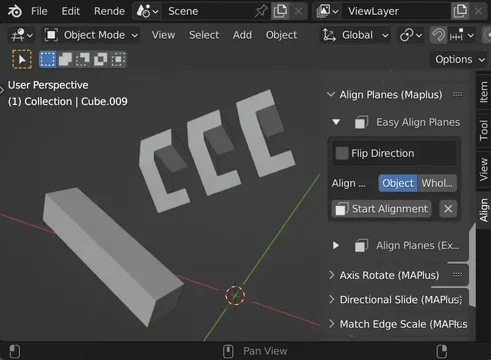


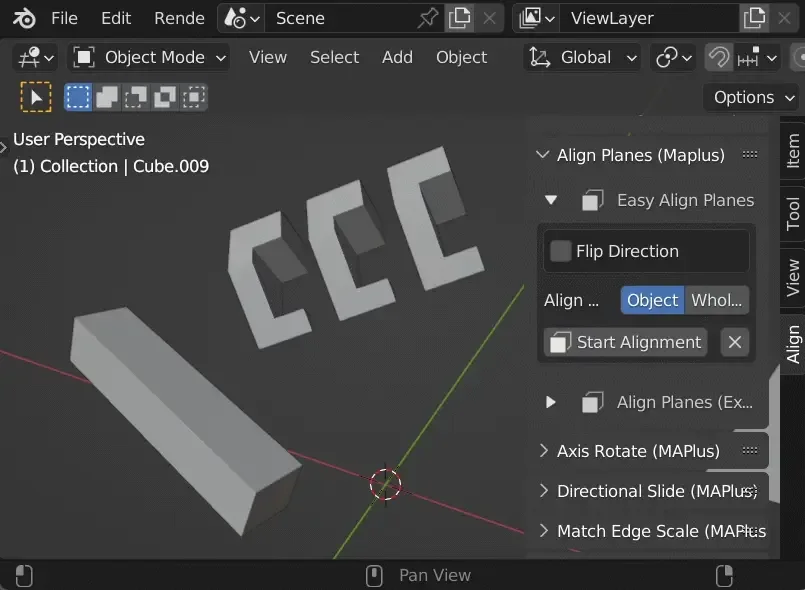
资源介绍
Move/align mesh parts+objects based on scene geometry/metrics
Compatibility: Blender 4.2.0+
官方介绍(中文整理)
移动/对齐网格部分+基于场景几何/几何的物体。
精确移动和对齐网格部件和对象, 以几何和测量您与 Mesh Aliign Plus 的场景。 在 YouTube (或维基语上的GIF) 上观察指令的剪辑 !
项目主页:
该扩展是 Blender 官方扩展库中的插件,用于辅助 Blender 创作流程。详细功能请查看下方官方原文。
维基 :
该扩展是 Blender 官方扩展库中的插件,用于辅助 Blender 创作流程。详细功能请查看下方官方原文。
网格对齐加 赋予您在屏幕上选择特性的权力( 如线条或平面: 它们被称为“ 对齐键 ” ) , 并相应对齐对象。 您也可以使用相同的基本工作流程编辑网格的部分内容。
您选择的特性定义对齐的运行方式。 例如, 要对齐平面, 您可以在编辑模式中选择第一个平面, 然后选择第二个平面, 然后再选择一些应用对齐的方法 : 第一个表面将移动到第二个表面。
在此示例中,您选择的平面可以来自任何对象, 您移动的东西也取决于您: 移动一个对象, 或很多选中对象, 或者在建模时的网状碎片( 每一个工作流程都遵循相同的基本步骤 )。 您可以选择做一些怪异的事情, 比如定义一个平面, 3个不同的对象上有3个斜面( 垂直选择命令也重要 !)。
网状对齐补充还可以从屏幕上捕捉自定义转换的测量数据。 找到一条线/ 平面交叉点, 抓取对齐时的正态, 测量线( 一条线可以是边缘, 也可以是两个随机的旋转)。 例如, 定义一个隐性轴, 并调整您的空间站, 使其沿此位置。
Mesh Align Plus 中的所有事物都遵循这些基本概念: 选择一些特性, 并选择如何应用这些特性。 如果您在做一些简单的事情, 比如将不同对象的真实面孔对齐, 您可以使用“ 易变模式 ”。 但是, 对于超复杂的对齐, 专家模式给了您定义键的超强能力和灵活性, 以及您想要移动的目标。
每种工具的专家模式可能看起来都很可怕, 但实际上这只是个BUNCH的选项, 允许你以奇怪的方式选择特征: 定义一条线, 这条线从一堆旋转的中间开始, 结束在直线/飞机的交叉点。 不要问我为什么你需要这样做, 你是自己.blend 文件的专家! : D :
查看官方原文摘要(English)
Precisely move and align mesh parts and objects based on geometry and measurements from your scene with Mesh Align Plus. Watch clips on YouTube (or GIFs on the wiki) for instructions!
Project Home Page:
https://github.com/egtwobits/mesh_mesh_align_plus/
Wiki:
https://github.com/egtwobits/mesh_mesh_align_plus/wiki
Mesh Align Plus gives you the power to pick features in your scenes (like lines, or flat surfaces: they're called "Alignment Keys"), and align your objects accordingly. You can also edit parts of your mesh using the same basic workflow.
The features you select define how the alignment behaves. To align flat surfaces, for example, you pick a first flat surface in edit mode, then pick a second flat surface, then select something to apply the alignment to: The first surface will move to meet the second surface.
In that example, the flat surfaces you pick can come from any object, and the thing you're moving is also up to you: move one object, or many selected objects, or a mesh fragment while modeling (each workflow follows the same basic steps). You can optionally do weird stuff, like defining a flat surface with 3 verts on 3 different objects (vert selection order matters too!).
Mesh Align Plus can also capture measurements from your scene for your custom transformations. Find a line/plane intersection point, grab face normals for alignments, and measure angles between lines (a line can be an edge, or just two random verts)…and more. Define an invisible axis, for example, and align your space station to lie along it.
Everything in Mesh Align Plus follows those basic concepts: Pick some features, and choose what to apply it to. If you're doing simple stuff like aligning real faces from different objects to each other, you can use Easy Mode. For super complex alignments, though, Expert Mode gives you extreme power and flexibility for defining your keys, and the target(s) you want to move.
Expert Mode for each tool might seem scary, but it's really just a BUNCH of options that allow you to pick features in weird ways: Define a line that starts in the middle of a bunch of verts, and ends at the intersection point of a line/plane, for instance. Don't ask me why you'd need to do that, you're the expert on your own blend files! 😀
安装方法
- 打开 Blender「编辑 → 偏好设置 → 获取扩展(Get Extensions)」,搜索 Mesh Align Plus,可直接从官方库安装。
- 手动安装时,选择适合当前 Blender 版本与系统的 ZIP 包,在「获取扩展」右上角菜单选择「从磁盘安装(Install from Disk)」,选中 ZIP 文件,无需解压。
- 安装后,在偏好设置的「插件(Add-ons)」中确认已启用,并按作者说明使用。
下载安装包
请选择与你的 Blender 版本和操作系统相符的文件,下载由 Blender 官方扩展库提供。
正在加载安装包…
来源与许可
- 作者 / 维护者:BitByte
- 许可:SPDX:GPL-2.0-or-later
- 来源:Blender 官方扩展库


![[搬运]超级粘液资产合集-魔酷网](https://i.blender.kim/wp-content/uploads/2026/01/20260131142748712.png)


暂无评论内容