


资源介绍
Import images and stick them to the camera
Compatibility: Blender 5.0.0+
官方介绍(中文整理)
导入图像并将其粘贴在相机上。
导入图像并将其嵌入到相机中。 然后您可以设置图像对象或相机属性的距离和宽度。 平面将适应相机的视野或焦距。 您可以轻而易举地同时导入数张图像, 其深度将相等。 这在创建需要粘贴相机的绘画像舞台的数据集时非常有用。
流动流量
导入中
- 选择相机
- 单击从对象属性导入相机平面
- 选择要导入的图像
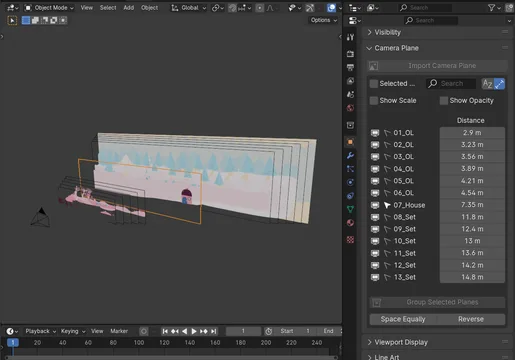
- 面板现在扩展以显示图像列表。
- 这些图像可以过滤,可以按字母顺序显示,也可以通过增加距离来显示。
图像图像设置设置
从相机平面板面板上,您可以通过设置与相机的距离来重新排列飞机的顺序。与Blender的其他属性一样,您可以单击距离,向上或向下拖动以包括与其他平面的距离,然后从左或向右拖动以改变距离,从而同时移动几个平面。
每个图像的大小和不透明性也可以分别点击显示比例和不透明度来调整。
每一层左侧的图标可用于改变其可见度(视图和同时生成)、可选性,以及锁定和打开变换。
运算符
一些操作员可以在向右上方的箭头菜单中操作。
组选中组
这样可以从选中的平面上创建某种“ 预变 ”。 当您的各组拥有很多层, 而不是所有层应该单独设置时, 使用它。
空间平均
这将会改变所选飞机的距离,
查看官方原文摘要(English)
Import images and parent them to the camera. You can then set the distance and width from the image object’s or the camera’s properties. The plane will adjust to the camera’s FOV or focal length. You can easily import several images at once, which will be equally spaced in depth. This is useful when creating painted stage-like sets which need to stick to a camera.
Workflow
Importing
- Select the camera
- Click Import Camera Planes from the object properties
- Select images to import
- The panel now extends to show a list of images.
- Those images can be filtered, and they can be displayed either in alphabetical order, or by increasing distance from the camera.
Image settings
From the Camera Plane panel, you can reorder the planes by setting their distance from the camera. Like other properties in Blender, you can click on a distance, drag up or down to include the distance from other planes, and then drag left or right to change the distance, and thus move several planes at once.
The scale and opacity of each image can likewise be tweaked by clicking Show Scale and Show Opacity, respectively.
Icons to the left of each layer can be used to change their visibility (both viewport and render at the same time), selectability, and to lock and unlock their transforms.
Operators
Some operators are available in the arrow menu to the top right to manipulate the planes.
Group Selected
This allows creating a sort of “precomposition” from the selected planes. It is useful when your sets have a lot of layers, not all of which should be placed individually.
Space Evenly
This will change the selected planes’s distances so that they all have the same distance between them.
安装方法
- 打开 Blender「编辑 → 偏好设置 → 获取扩展(Get Extensions)」,搜索 Camera Plane,可直接从官方库安装。
- 手动安装时,选择适合当前 Blender 版本与系统的 ZIP 包,在「获取扩展」右上角菜单选择「从磁盘安装(Install from Disk)」,选中 ZIP 文件,无需解压。
- 安装后,在偏好设置的「插件(Add-ons)」中确认已启用,并按作者说明使用。
下载安装包
请选择与你的 Blender 版本和操作系统相符的文件,下载由 Blender 官方扩展库提供。
正在加载安装包…
来源与许可
- 作者 / 维护者:Les Fées Spéciales
- 许可:SPDX:GPL-3.0-or-later
- 来源:Blender 官方扩展库


暂无评论内容