

资源介绍
Apply Lattice modifier to object(s) in object/edit mode
Compatibility: Blender 4.2.0+
官方介绍(中文整理)
对对象/编辑模式中的对象应用 Lattice 修饰器。
Lattice 帮助器
Lattice 帮助器是用来为您选中对象/ 网格创建匹配的 Lattice 的附加工具, 仅点击一个对象/ 编辑模式。 (由 ACGGit 团队在 2021 年开发 )
如何使用
1. 添加花束
选择一个或多个对象,单击右键并选择“拉丁重叠”
为一个对象创建匹配的挂盘。
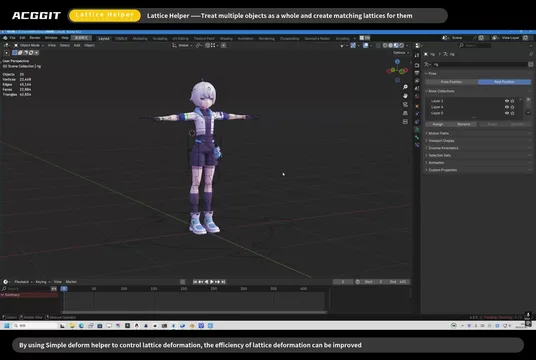
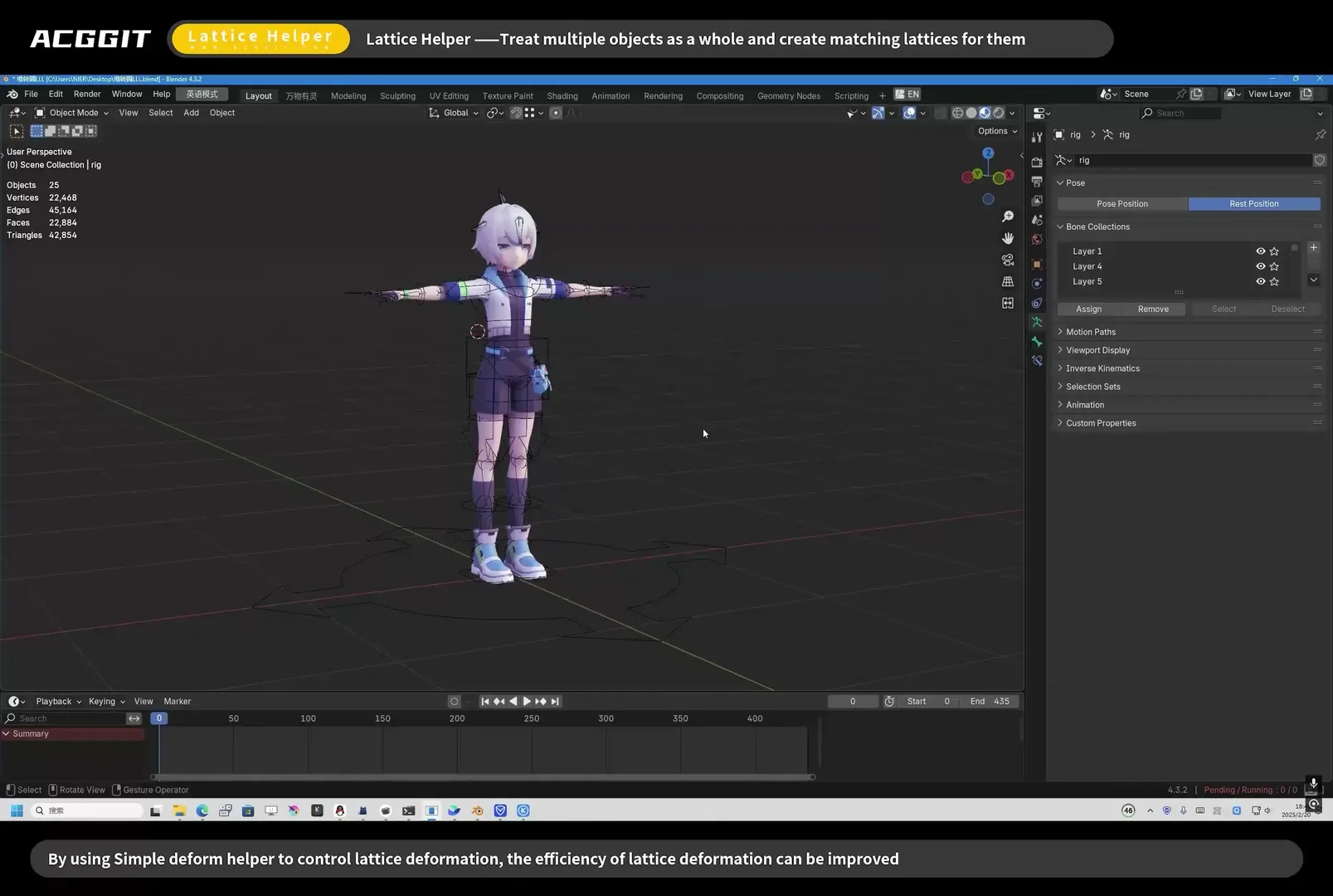
将多个对象作为一个整体处理,并为它们创建匹配的顶点。
每个选定的网格对象分别添加 lattics。
选择几个顶点,单击右键并选择“ littice 上覆”
将选定区域作为一个整体处理,并创建花束(即使它来自不同的对象)
以松散部件分别创建 lattistes
2. 去除衬垫
在对象模式中选择 lattice 或对象, 右单击并选择“ delete lattace ”
3. 施用衬垫
在对象模式中选择 lattice 或对象, 右单击并选择“ 应用 lattace ”
经验交流
□ 为便于使用,默认启用在对象与衬垫之间设置父对称
当只有一个对象时,对象为母对象
查看官方原文摘要(English)
Lattice Helper
Lattice Helper is an add-on used to create a matching lattice for your selected object/mesh with just one click in object/edit mode.(Developed by the ACGGit team in 2021)
How to use
1. Add lattice
Select one or more objects, right-click and select "lattice overlay“
Create a matching lattice for one object.
Treat multiple objects as a whole and create matching lattices for them.
Add lattices to each selected mesh object separately.
Select several vertices, right-click and select "lattice overlay“
Treat the selected area as a whole and create a lattice (even if it comes from different objects)
Create lattices separately by loose parts
2. Remove lattice
Select lattice or object(s) in object mode, right-click and select "delete lattice“
3. Apply lattice
Select lattice or object(s) in object mode, right-click and select "apply lattice“
Experience sharing
·For ease of use, setting a parent between the object and the lattice is enabled by default
When there is only one object, the object is the parent
安装方法
- 打开 Blender「编辑 → 偏好设置 → 获取扩展(Get Extensions)」,搜索 Lattice Helper,可直接从官方库安装。
- 手动安装时,选择适合当前 Blender 版本与系统的 ZIP 包,在「获取扩展」右上角菜单选择「从磁盘安装(Install from Disk)」,选中 ZIP 文件,无需解压。
- 安装后,在偏好设置的「插件(Add-ons)」中确认已启用,并按作者说明使用。
下载安装包
请选择与你的 Blender 版本和操作系统相符的文件,下载由 Blender 官方扩展库提供。
正在加载安装包…
来源与许可
- 作者 / 维护者:ACGGIT_LJ
- 许可:SPDX:GPL-3.0-or-later
- 来源:Blender 官方扩展库


![[搬运]超级粘液资产合集-魔酷网](https://i.blender.kim/wp-content/uploads/2026/01/20260131142748712.png)


暂无评论内容