

资源介绍
Imports pixel art as colored cubes or squares for each pixel
Compatibility: Blender 4.2.0+
官方介绍(中文整理)
导入像素艺术,作为每个像素的彩色立方体或方形。
此添加时导入像素艺术图像作为彩色立方体或方形。 100% Alpha 的像素将被忽略。
注意 : 为了取得最佳效果, 导入的像素艺术实际上应该拥有图像中显示的像素是实际的 1×1 像素。 否则, 可以自动下调图像, 但对于丢失的图像( JPEG) 来说是行不通的 , 或者如果它被缩放为原尺寸的非整数倍数, 并且可能比较慢( 详情见下文)。 也许您更希望手工(使用最近的邻居选项)在图像编辑器中缩放图像。
功能特点
此添加时导入的像素艺术图像, 以颜色为 1x1x1 的立方体或单网格中的 1×1 平面。 忽略了100% Alpha 的像素。 所有相同颜色的像素都将共享一个材料。 材料可以使用节点。 创建的立方和材料的名称可以通过格式字符串控制。
如果您使用“ 单立方体” 选项, 则导入的像素会被全部嵌入一个空对象, 这样它们可以很容易地整体转换。 立方体的大小为 1x1x1 , 这样它们可以在持有 ctrl 时很容易移动到像素周围。
如果您使用“ 2D Mesh” 选项, 所有的像素都是单网格中的平面。 如果您仍然想要立方体, 只需在 Z 方向将整个网格用一个单位挤出。 或者您可以使用固化修饰器。
此选项的导入速度要快得多, 似乎在Blender中用一个大网格比在许多小物体上工作更快。
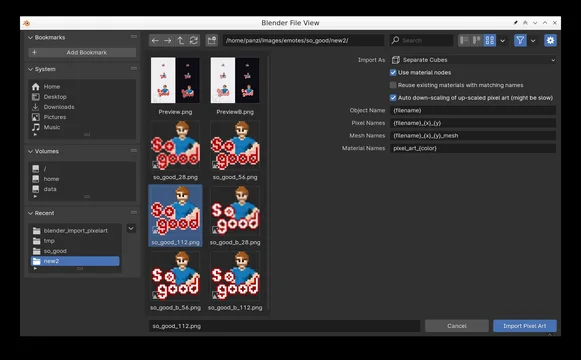
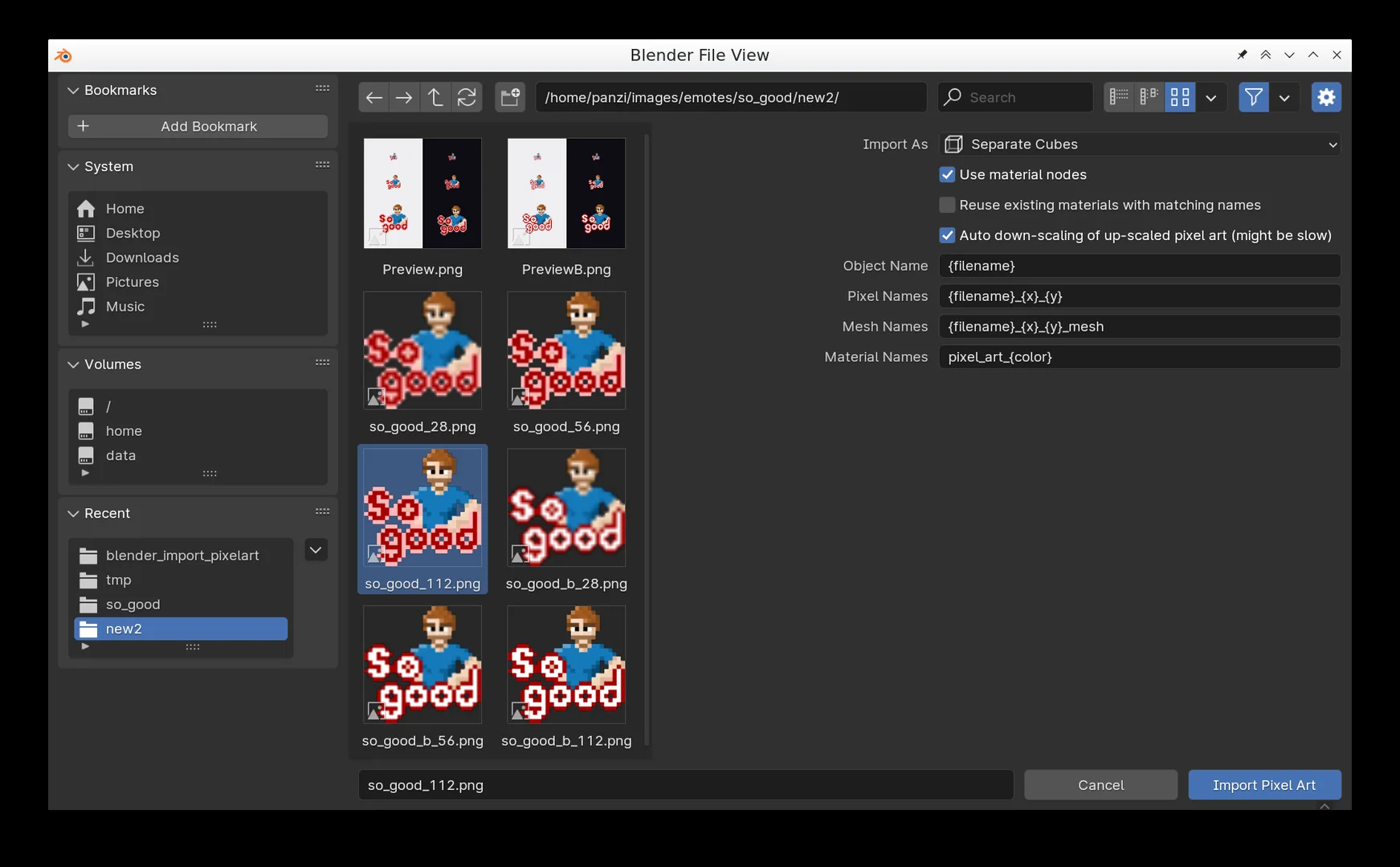
选项选项
导入为
- 独立的立方体:单独的立方体,每个立方体都是它自己的对象。
- 2D 网格: 包含方形的所有像素的单一网格。
使用材料节点
当检查此选项时, 像素的材料将使用节点。
重新使用与名称匹配的现有材料
当此选项被选中时, 将使用符合指定名称的现有材料, 而不是创建新名称。
自动向下缩放像素艺术
像素艺术通常以升级的形式张贴在互联网上, 意思是图像中显示的像素实际上是8×8 或更多像素。 当检查此选项时, 图像会被分析并自动降缩。 对于大图像来说, 这可能是非常缓慢的, 因为全在 Python 中完成。
注意 : 只有当图像升格为原始的整数倍, 而没有应用其他过滤器时, 这才有效。 如果图像被保存为 JPEG 这样的丢失格式, 这几乎总是失败的, 因为丢失格式会打乱像素。 使用的图像最好为 PNG、 BMP 或 GIF。
查看官方原文摘要(English)
This add-on imports pixel art images as colored cubes or squares. Pixels with 100% alpha are ignored.
NOTE: For best results the imported pixel art should actually have the apparent pixels be actual 1×1 pixels in the image. If not, there is an option to automatically down-scale such images, but it will not work for lossy images (JPEG) or if it was scaled to a non integer multiple of the original size and might be slow (see below for more details). Maybe you'd rather want to down-scale the image manually (using nearest neighbor option) in an image editor.
Features
This add-on imports pixel art images as colored 1x1x1 separate cubes or 1×1 planes in a single mesh. Pixels with 100% alpha are ignored. All pixels of the same color will share one material. The material can use nodes. The names of the created cubes and materials can be controlled through format strings.
If you use the option 'Separate Cubes' then the imported pixels are all parented to an empty object so they can be easily transformed as a whole. The cubes have a size of 1x1x1 so they can be easily moved around pixel-by-pixel while holding ctrl.
If you use the option '2D Mesh' all the pixels will be planes in one single mesh. If you still want cubes then simply extrude the whole mesh by 1 unit in the Z direction. Alternatively you simply can use the solidify modifier.
This option imports much faster and it seems it is also faster to work with a single large mesh in blender than to work with many small objects.
Options
Import As
- Separate Cubes: Separate cubes where each cube is its own object.
- 2D Mesh: A single mesh that contains all pixels as squares.
Use material nodes
When this option is checked the materials of the pixels will use nodes.
Reuse existing materials with matching names
When this option is checked already existing materials that match the specified name will be used instead of creating new ones.
Auto down-scaling of up-scaled pixel art
Often pixel art is posted on the internet in an upscaled form, meaning one apparent pixel is actually e.g. 8×8 or more pixels in the image. When this option is checked the image is analyzed and automatically down-scaled. This might be pretty slow for big images, since this is all done in Python.
NOTE: This only works if the image was up-scaled to an exact integer multiple of the original and no other filters where applied. If the image was saved as a lossy format like JPEG this will fail pretty much always, since lossy formats kinda smudge the pixels. The used image should best be PNG, BMP, or GIF.
安装方法
- 打开 Blender「编辑 → 偏好设置 → 获取扩展(Get Extensions)」,搜索 Import Pixel Art,可直接从官方库安装。
- 手动安装时,选择适合当前 Blender 版本与系统的 ZIP 包,在「获取扩展」右上角菜单选择「从磁盘安装(Install from Disk)」,选中 ZIP 文件,无需解压。
- 安装后,在偏好设置的「插件(Add-ons)」中确认已启用,并按作者说明使用。
下载安装包
请选择与你的 Blender 版本和操作系统相符的文件,下载由 Blender 官方扩展库提供。
正在加载安装包…
来源与许可
- 作者 / 维护者:bloody_albatross
- 许可:SPDX:GPL-3.0-or-later
- 来源:Blender 官方扩展库


![[搬运]超级粘液资产合集-魔酷网](https://i.blender.kim/wp-content/uploads/2026/01/20260131142748712.png)


暂无评论内容